How do I enroll a patient?
Enrolling a patient is simple! Follow the steps below:
- Login to Familyfirst and sign in with your credentials
- At the top right of the page, click "Enroll Patient".

- Then, fill out the fields in the form that appears.
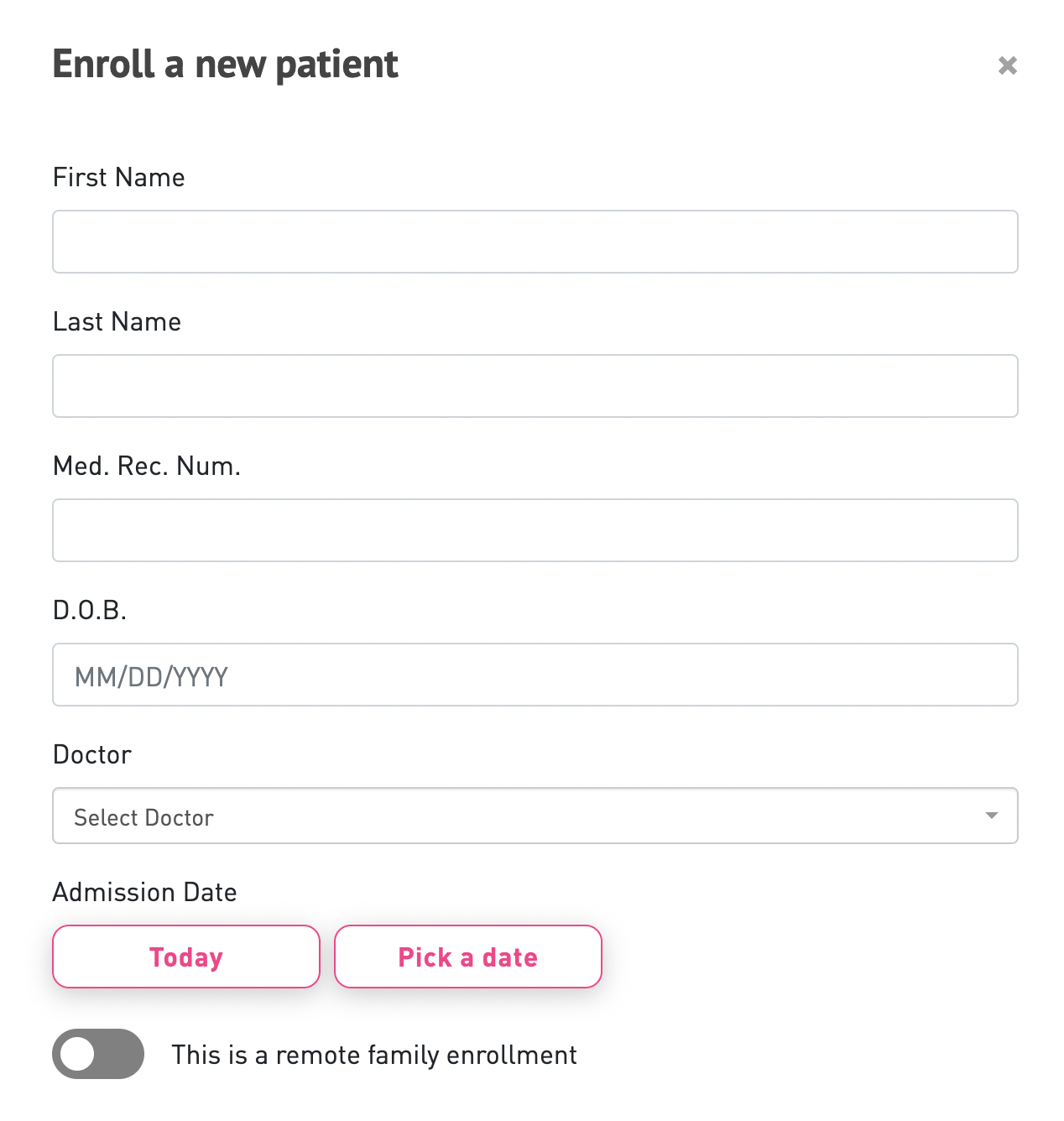
At the bottom of the form, you will see a toggle labeled "This is a remote family enrollment".
There are two potential situations of enrolling a patient/family onto Familyfirst: On-location and Remote
On-location

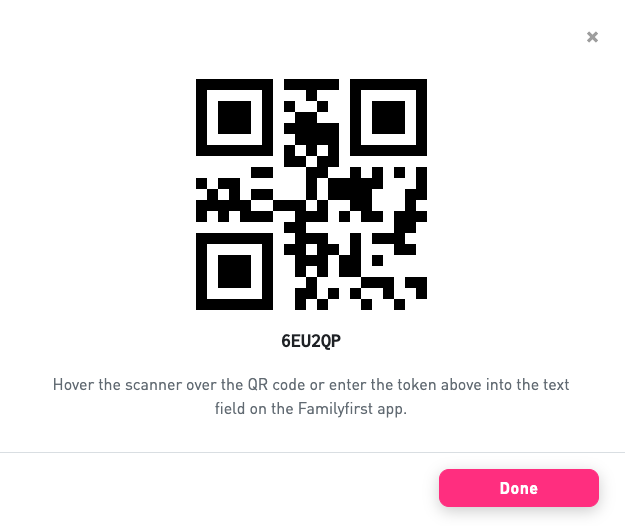
One case, is when the family is on-location at the hospital, in your presence. In this case you will NOT toggle the remote family enrollment option, and simply present the QR code / token displayed after enrolling the patient into the system. You can either have the family member scan the QR code on your display, or tell them the token to enter manually into their Familyfirst app.
Remote / Over the phone
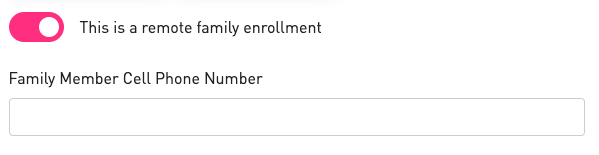
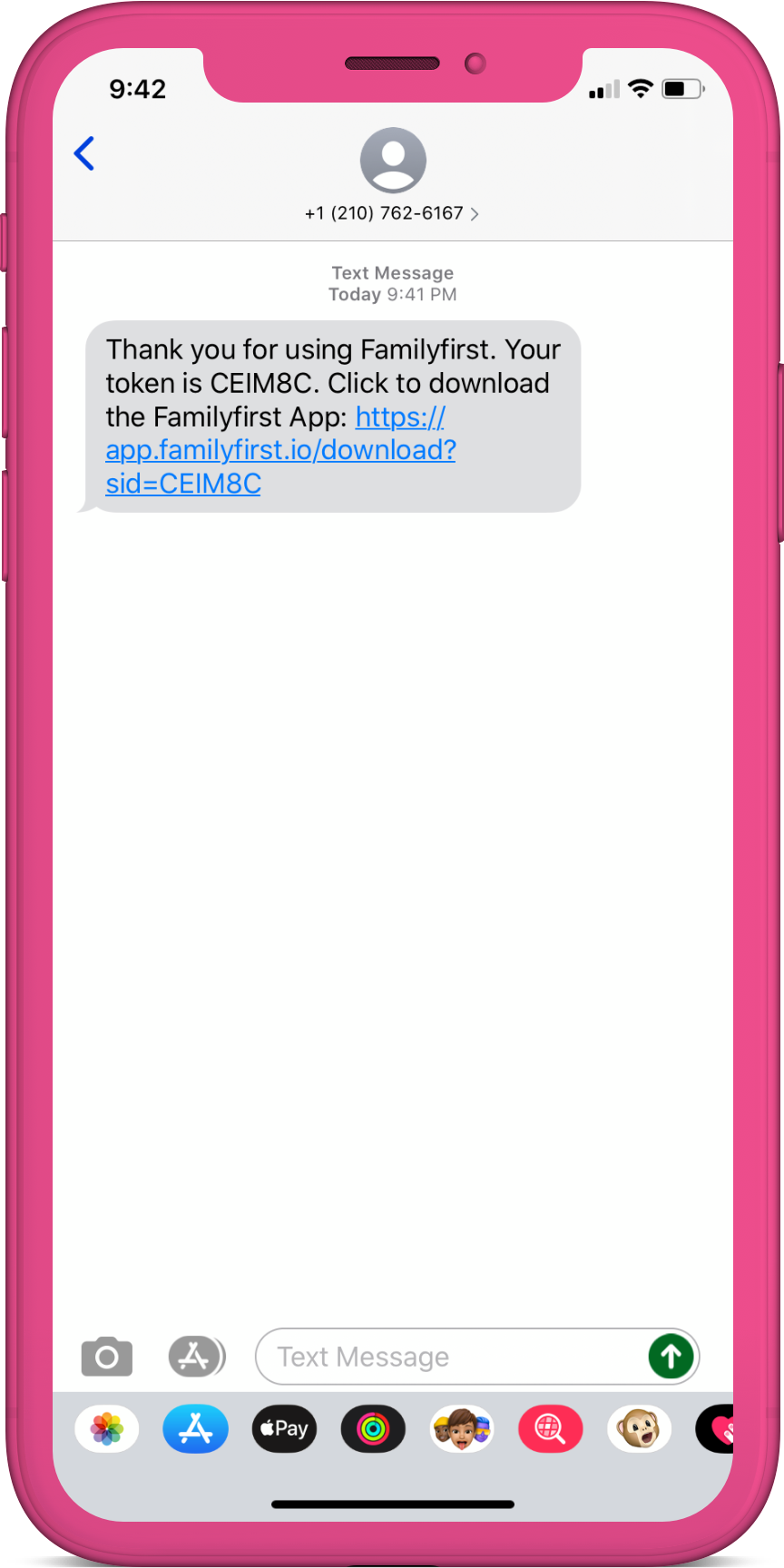
The other case, is when the family is not in your physical presence. Typically, this means you are enrolling them over the phone. In this case, toggle ON the remote family enrollment option. Upon doing so, a new field will appear for the family member's phone number. Input their cell-phone number and they will receive a text from Familyfirst with instructions on how to join the conversation. (The text they receive will include a link to install the Familyfirst app, as well as the token to enter into the conversation.)